 FxTimer
Getting started
Five minutes, most of it plugging in a cable.
How the pieces fit together
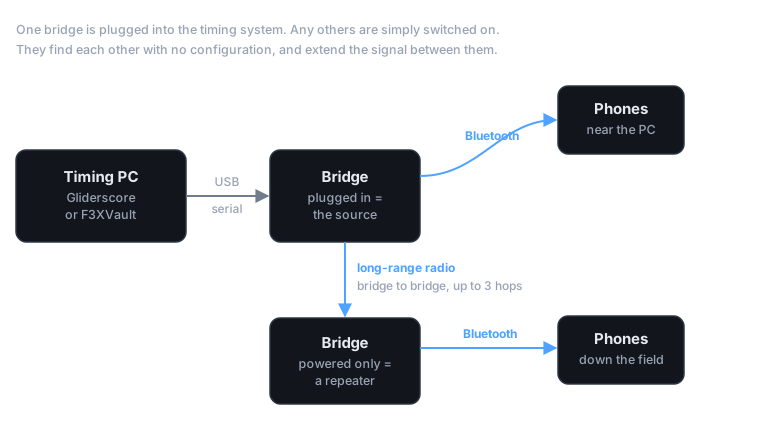
The timing system already broadcasts the round to the field. A bridge — a small ESP32 board on a USB lead — reads that output and republishes it over Bluetooth, which is what your phone understands.
One bridge is plugged into the timing PC. Any others are simply switched on: they find each other with no configuration and pass the signal down the field, so a single timing system can cover ground no one radio would reach.
1. Connect the bridge
Plug the bridge into the machine running Gliderscore or F3XVault, using the port the timing system sends its output to. Its LED tells you where you stand:
| Colour | Meaning |
|---|---|
| Red | no data arriving from the timing system |
| Amber | data arriving, no phone connected yet |
| Green | data arriving and a phone is connected |
| Blue tint | this bridge is relaying another's signal |
Red usually means the timing system is not sending on that port, or is sending at a different speed. Amber means the bridge is working and is waiting for you.
2. Open the app
There is nothing to pair and nothing to choose. The app scans on its own and attaches to the nearest bridge, and the round, group and task appear at the top of the timer screen.
If they do not, check that Bluetooth is on and that FxTimer has permission to use it. The app keeps scanning, so a bridge switched on later is picked up without restarting anything.
3. Fly the round
Start and stop with either volume key, or by tapping the screen.
The display is red while flying is not allowed and green during the working window. Each flight is added to the list as you take it, and the score for the round is worked out as you go.
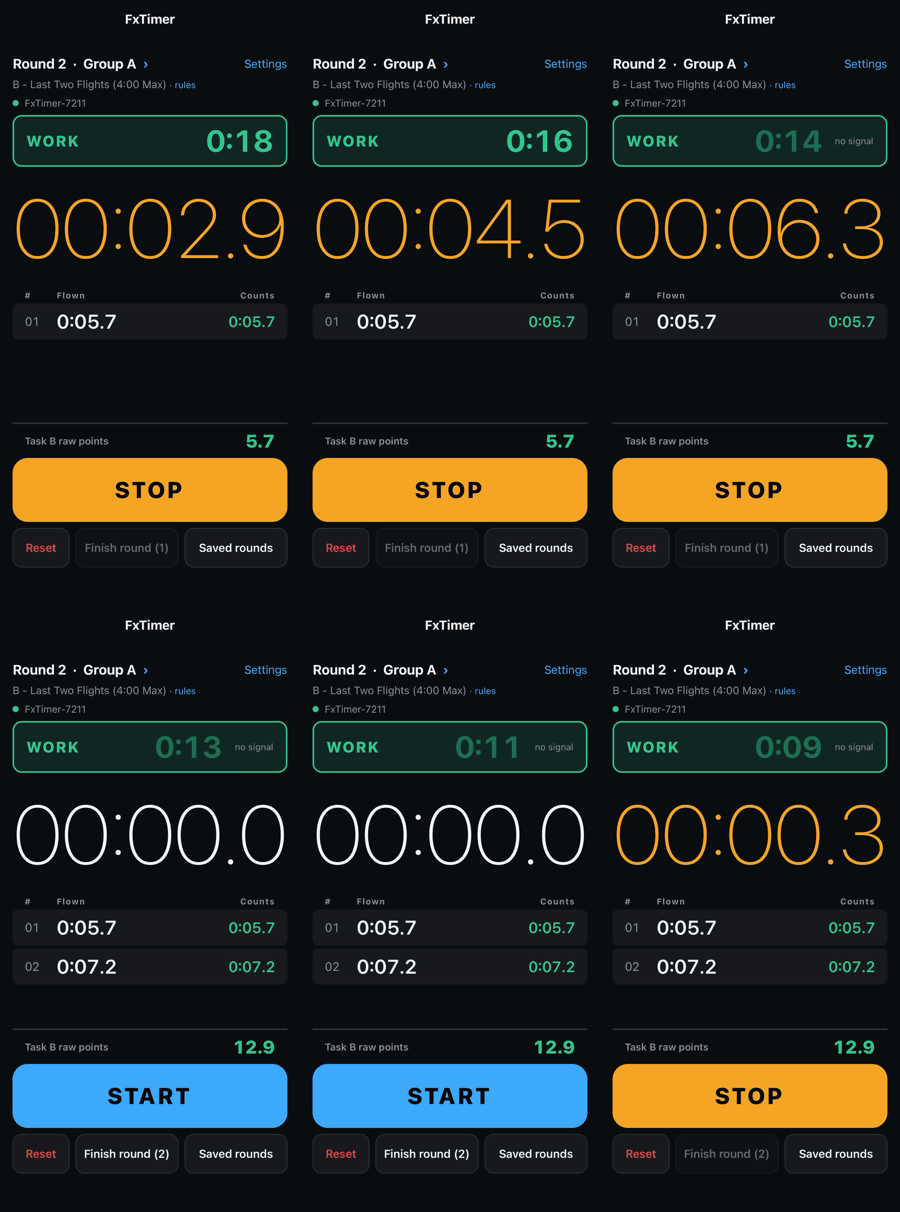
At the end of the working window the app sounds a cue, so the window can end while you are watching the model rather than the phone.
4. Save the round
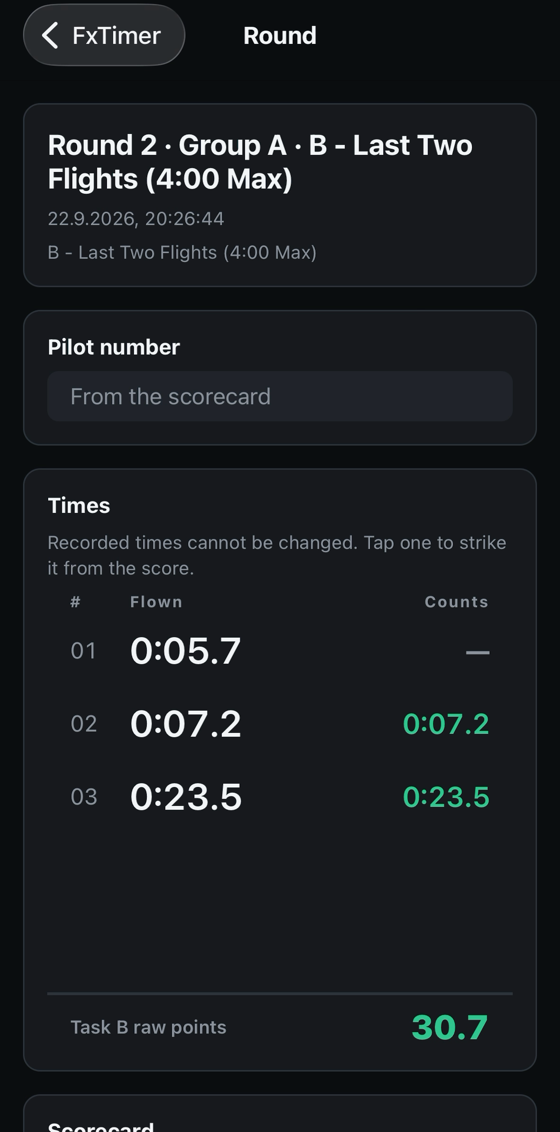
Finish round stores the times together with the round, group, task and date. Saved rounds can be looked at later, and exported.
5. Enter your scores
Scan the QR code on your scorecard — this is needed once per event, not once per round.
Then, from a saved round, choose Export. The app opens your own self-entry page on Gliderscore or F3XVault and fills in the times that count for the task, in whichever form that site uses.
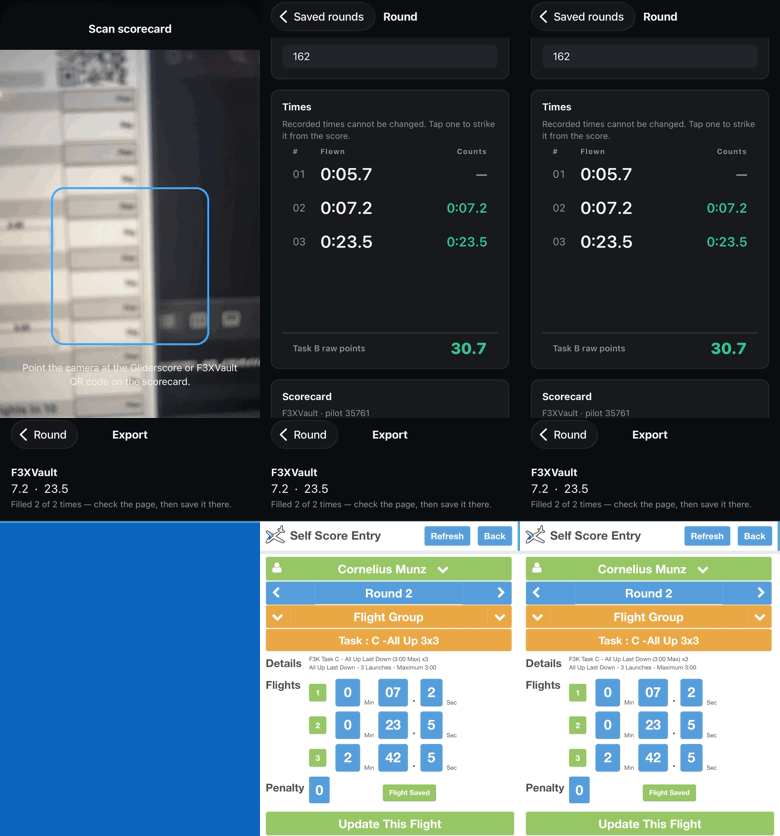
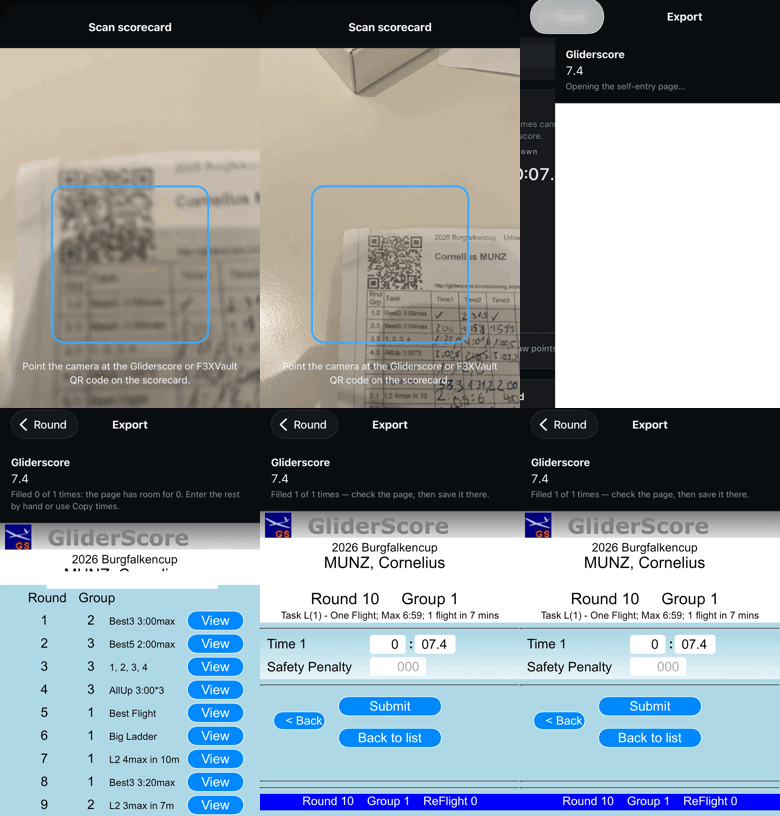
Check the page, then press the site's own Submit or Save this flight. The app never submits for you.
On Gliderscore the entry page is reached by pressing Enter on the overview; the app fills the form once you are there. If the page is showing a different round from the one you flew, nothing is filled and the app tells you which round it is looking at.
Flying without a timing system
Tap the round and group line above the stopwatch to set them by hand, and pick the task from the list. Everything else — the rules, the scoring, saving and exporting — works exactly as it does with a bridge.
For a working window of your own, turn on Training mode in Settings.
Stuck? Support has the common questions, or write to feedback@fxtimer.com.